понедельник, 23 ноября 2015 г.

How to setup Price Condition, depending on the configuration (updated 21.12.2015)

Vehicle Management System's master data based on configurable material, where at least colors can be defined.
Here a short "step-by-step" customizing.


1. Keep in mind reference characteristics’ values, you want to involve for pricing. Here two colors (PGU & RHM), which will be additionally charged:

Class – DR
Characteristic – DR_EXTCOLORS
Values – PGU, RHM


2. Define reference characteristic for price conditions, which depend on configuration (separately for SD and MM pricing). T-code CT04, new characteristic CONFIGPRICESD


In Additional Data view point SDCOM - VCOND reference.
!!! You should fill this fields before view "Values".


One time I've got an error 

Field VCOND not found in table SDCOM
Message no. C1024

Don't know the reason, but I've bypassed it through transfer IDOC CHRMAS / CHRMAS05 from other system, then created well..

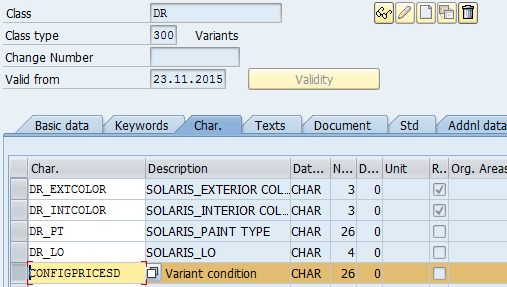
Specify price characteristics’ values PGU, RHM (same values will be defined as variant conditions further)


3. Attach characteristic CONFIGPRICESD to class DR (t-code CL02):


4. For every value of characteristic CONFIGPRICESD create Variant Conditions (VK30):


5. Define object dependency (type Procedure) CONFIGPRICESD to bind together next objects (t-code CU01):
  • reference characteristic' value (step 1)
  • price characteristics’ values (step 2)


Edit dependency:


 With source code:
 
$self.CONFIGPRICESD = 'PGU' if DR_EXTCOLOR = 'PGU',
 
$self.CONFIGPRICESD = 'RHM' if DR_EXTCOLOR = 'RHM'

For ERP Enhancement Package 8 the syntax is like that (example from other case):

$SELF.CONFIGPRICESD1 = 'B001' IF AEQ_BRAKE1 EQ 'B001',
$SELF.CONFIGPRICESD1 = 'K001' IF AEQ_BRAKE1 EQ 'K001',
$SELF.CONFIGPRICESD1 = 'C001' IF AEQ_TYRES1 EQ 'C001',
$SELF.CONFIGPRICESD1 = 'G001' IF AEQ_TYRES1 EQ 'G001',
$SELF.CONFIGPRICESD1 = 'BR01' IF AEQ_TYRES1 EQ 'BR01',
$SELF.CONFIGPRICESD1 = 'A001' IF AEQ_WHEELS1 EQ 'A001',

$SELF.CONFIGPRICESD1 = 'A002' IF AEQ_WHEELS1 EQ 'A002'


6. Attach created dependency to material (t-code PMEVC)


Result:


7. Create price conditions for material (VK11):
  • VA00 – absolute value
  • VA01 – percentage value


8. Now, when you create Sales Order with material DRS4D1615DG146 and color PGU, surcharge appears in pricing under condition VA00:


9. Also you can check if variant condition works properly in PMEVC. Select material and push Test (Shift+F8) button. Then select values to simulate pricing and push Pricing (Ctrl+Shift+F7) button. If value's combination  is related to pricing, Net value screen appears (3):


10. Improvement.


Imagine, that you use value PGU in several characteristics, let's say DR_EXTCOLOR and
B1_EXTCOLOR your dependency (step 5) will be like that:

$self.CONFIGPRICESD = 'PGU' if DR_EXTCOLOR = 'PGU' or B1_EXTCOLOR = 'PGU',
$self.CONFIGPRICESD = 'RHM' if DR_EXTCOLOR = 'RHM'

In such cases is better to use Expression "SPECIFIED" to point all characteristics, which could include value 'PGU'. Having that, the dependency (first row) will look much better:

$self.CONFIGPRICESD = 'PGU' if DR_EXTCOLOR SPECIFIED OR B1_EXTCOLOR SPECIFIED

After assignment in PMEVC you will be able to see all characteristics, participated in dependency:


The dependency could be assigned to materials in two ways:

  • On material level (only selected materials, one-by-one), or
  • On material's characteristic level (all materials with this characteristic, in-mass). For this way, select any material with characteristic, involved in pricing and assign dependency to this characteristic:


Benefits:
  • you can use the same Reference Characteristic (CONFIGPRICESD) for all color characteristics
  • you can use the same Variant condition (PGU) for whole range of materials
  • the dependency is much better to maintenance 
Here you can see a short video regarding the topic and mass price handling:


вторник, 10 ноября 2015 г.

How to set up ORDERS, ORDRSP, DESADV, INVOIC IDOCs interchange in the same system

In order to prepare IDOCs interaction between two systems, it's better to check them in the same (SAP) system. Here I'll show, which steps you should pass to.

At the beginning I will describe system & document environment.
I'm going to use two organization units Distributor and Manufacturer and four IDOC message types: ORDERS, ORDRSP, DESADV, INVOIC.
Every active step bellow will be highlighted by dark arrow, which also point a direction of IDOC from OUT to IN:

General view:
 
Steps 1-2 (A): IDOC ORDERS ORDERS Purchase order / order
I use Basic type ORDERS05, because only this can transfer material's configuration, which is important for Automotive.


Pre-requisites for Outbound part:
  • XK01 – Create vendor (90500) and attach with SO customer (C40AF00323 – correspondence view, field EIKTO)


  • WE20 – Create Vendor 90500 (Partner type – LI)
  • WE20 – Create Outbound parmtrs. For Vendor 90500 (Partner type – LI) , (othewise error message VN032 Maintain outgoing EDI-connection data for partner 90500)
  • MN04 – Create output type NEU for Vendor (90500)

Pre-requisites for Inbound part:
  • WE20 – Create Inbound parmtrs. For Logical system T90CLNT090 (Partner type – LS)
  • VOE2 - create EDSDC Entry (othewise error message VG204 - VKORG, VTWEG, SPART cannot be determined for customer C40AF00323 , vendor 0000090500)
  • VOE4 - create EDPAR Entry (othewise error message VG140 - Partner number 9000 for customer C40AF00323 , partner function WE does not exist) LVEDAF2J (FM IDOC_INPUT_ORDERS) – for debug message VG140


  • VD51 - Maintain Customer-Material Inforecord, table KNMT (othewise error message VG203 - The material number for item 000010 could not be identified)
  • VD51 - fill text (not only material code for customer-material inforecord) othewise error message no. 00347 Field VBAP-ARKTX (1) is not an input field
Steps 3-4 (B): IDOC ORDRSP Purchase order / order confirmation


Pre-requisites for Outbound part:
  • WE20 – Create Outbound parmtrs. For Customer C40AF00323 (Partner type – KU & SP)
  • VV11 - Create Output Type BA01
Pre-requisites for Inbound part:
  • WE20 – Create Inbound parmtrs. For Logical System T90CLNT090 (Partner type – LS)
  • ME12 – Set up confirmation control key for Purchase Inforecord
Steps 5-6 (C): IDOC DESADV Delivery: Shipping notification


Pre-requisites for Outbound part:
  • WE20 – Create Outbound parmtrs. For Customer C40AF00323 (Partner type – KU & SH)
  • VV21 - Create Output Type LALE
  • WE42 – change for DELS FM to IDOC_INPUT_DESADV1 (othewise error message B1252 - Function module not allowed: BORES_IDOC_INPUT_DESADV1)
Pre-requisites for Inbound part:
  • WE20 – Create Inbound parmtrs. For Logical System T90CLNT090 (Partner type – LS)
Steps 7-8 (D): IDOC INVOIC Invoice/Billing Document


Pre-requisites for Outbound part:
  • WE20 – WE20 – Create Outbound parmtrs. For Bill-To C40AF00323 (Partner type – BP)
  • VV31 - Create Output Type RD00
Pre-requisites for Inbound part:
  • WE20 – Create Inbound parmtrs. For Logical System T90CLNT090 (Partner type – LS)
  • OBCA – Maintain Table T076B, create two records in case you use the same system (othewise error message FD006 - A company code cannot be determined for LS 0000090500)
  • OBCE – Maintain Table T076S (othewise error message FD145 - Program parameters for LS T90CLNT090 9000 have not been set)
  • OBCD - Maintain Table T076M (othewise error message in application log FD008 - Assigning a new tax key for B2 and VAT 18.000 not possible)

вторник, 15 сентября 2015 г.

SAP Automotive Industry solution VMS: ways to improve


For automotive distributors SAP proposed an Industry solution called Vehicle Management System. Indeed, if your company operates with premium car's sector and daily operations volume is modest, you can use VMS solution almost "from the box". Otherwise you will face lots of limitations.
The article - short example of such limitations, experienced after more than 5- years of VMS - solution using.

VMS high-level limitations


  • Now VMS solution has poor connection to standard SAP functionality (transportation, ATP-check, Demand Planning and so on);
  • The basic extension of VMS is possible basically through ABAP programming;
  • In general, VMS oriented for execution not big portion of operation, basically “step-by-step” manually.

VMS-solution improvement ways

Current VMS solution can be improved to satisfy the needs of big importers:
  • Business scenarios of VMS solutions based on standard functionality set are absent (transportation, ATP-check, etc.)
  • Demand Planning doesn’t cooperate with VMS-oriented Configurable Material & characteristics.
  • Tight &Loose links to SO doesn’t fit to ATP.
  • There’s no scenario for Vehicle Passport processing .
  • There’re no basic vehicle characteristics in the Material Master (Engine capacity, transmission type, etc.), that can be processed using standard functionality (Pricing, etc.).
  • Isolation is not fully realized in VMS-actions. Multiple actions confuses users.
  • Two VMS-matrix idea doesn’t work in non “step-by-step” process.
  • Single-item & quantity idea requires additional entity for grouping purposes (pricing, confirmations, packing etc.).
 Limitations of VMS-solutions architecture in SAP

  • No possibility to process the operations initiated in standard SAP objects (sales order, shipment, etc.).
  • Functional modules prepare, execute should be attached to VMS actions through Customizing (like screen setting of the operation in OVELO6).
  • Screen fields of input and output of data for operations should be set up in customizing (currently fields should be  added by ABAP programming).
  • Every new field, you want to operate with, should be included at least in VLCVEHICLE and VLCHISTORY tables.
 More detailed examples

Multi-Item & Qty PO challenges
  • Batch reference in schedule line level (and further confirmation level).
  • Pricing update for item with PO history in open items.
  • GR/IR reference to specific unique batch. Without such reference it is possible to double GR/IR for same batch.
  • Most of PO BAPI-s consider valuation type on the item (not schedule line) level.
Calendar data tracking challenges
 
VMS is supposed to track easily calendar data information, but…
  • As usual, those datas are not transparent and calculating on-air.
  • You should expend every data you need in VLCVEHICLE & VLCHISTORY table.
  • It is hard to predict the all dates, which should be cleaned after cancelation.
  • Those dates not easy to use in standard functionality, for example, pricing or document flow.
 

среда, 11 марта 2015 г.

First steps to make SCM Deamand Planning working

This post is shows, how to make DP working in IDES system.
Scenario will be as follow:
1. To find appropriate info structure in ERP, which is updated by Sales Orders
2. To create a generic extractor based on Info structure and make it work in BW

At first, try to find info structure, which will be updated by SO.
In t-code MCVR Simulate Update for Sales Order to define info structure:

 
Info structure S905 looks good for our experiments. To fill it, run OLI7.
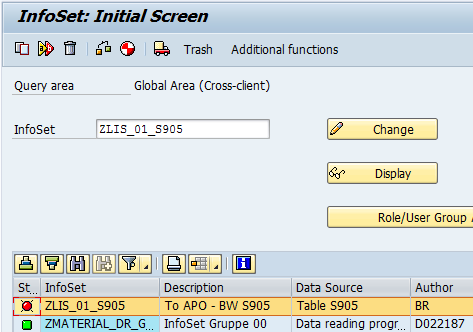
Now will create infoset (SQ02), put the name (1) and push "Create" (2):


On the next screen follow the markers:


Save:


Local object:
 
 
Then return back and for "Generate InfoSet?" choose "NO", Infoset will be RED:
 

Select "Delete Text Fields":

 
Enter to "Change" mode again and push "Generate" button:


Infoset ZLIS_01_S905 will became GREEN.

Next step - is to create Generic DataSource, t-code RSO2.
Select as follow:


On the next screen select "Extraction from Query" (1) and then put the infoset name (2):


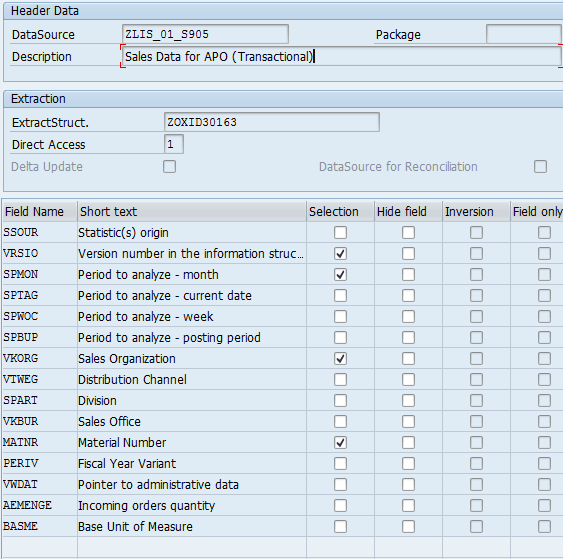
And push "Save", after that you can tick fields for selection and save again:


Next step - is to check Generic DataSource, t-code RSA3.

Put the name of DataSource (1), enter select options (2), and push "Extraction" (3):
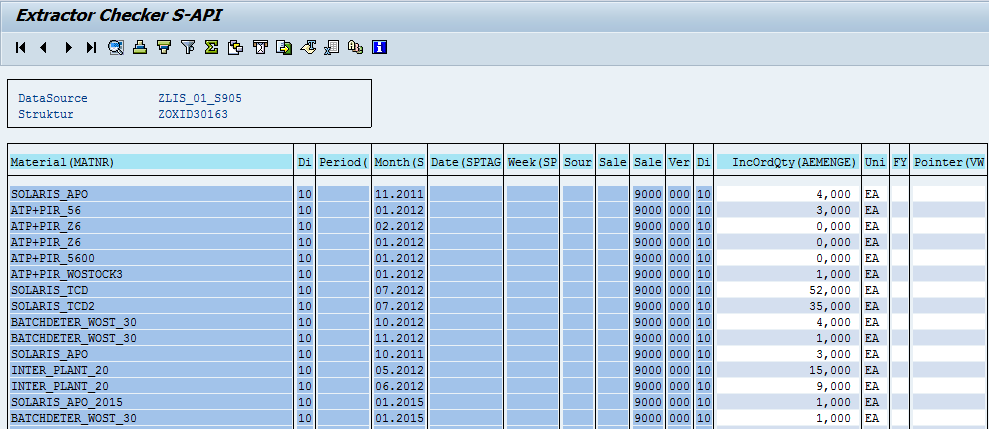
It test was successful, new button "List" will appear, push it and than doubleclick Datapackage number, you will see the result:


Next step - is to replicate Generic DataSource to BW (APO system), t-code RSA1.

Select appropriate system from DataSources:


Find an Application Component, where you save Generic Data Source (Sales and Distribution) and push "Replicate Metadata":

 
On the next screen select option "this and following 6 as DataSource (RSDS):


 After that you will see the DataSource, created in ERP (ZLIS_01_S905):

 
Next step, we going to achive - to put data from ERP DataSource ZLIS_01_S905 to InfoCube.
To be sure, that our InfoCube does not influenced by any old conjunctions, is better to create new cube.
Let's find any existing InfoCube with "sale" keyword (SCM system > RSA1):
 
 
Several records exist:
 
 
Let's take SALES cube as a reference and copy it to a new one:


Enter a new name, maximum 9 symbols (1) and push Create (2):


New InfoCube will appear in the right-hand area:
 
 
Activate them ().


Now return to DataSources view and create Transformation for DataSource ZLIS_01_S905:


Enter Object Type "CUBE" and name - S905SALES, created before:


On the next screen, set conjunctions between DataSource and InfoCube lines:


Activate them (), transformation will appears on DataSourses vie:


Next step - is to create Data Transfer Process. Right-click on the InfoCube and select Create Data Transfer Process:


Enter the DataSource (1) and press Enter:


New Data Transfer Process will appear in the right-hand area.
You can do some adjustment, for example, Filter and Extraction Mode (and Activate, of course):


After that, you are ready to run the data reception process (1):


If everything is OK (green), on the BI Object Monitor () you will see Data records Inserted:


Also your data chain will be changed like that:


To see data in the InfoCube, right-click on cube and select Display Data:


Further select fields (all, for example) and you will see data in InfoCube: